Hunting KERNEL_SECURITY_CHECK_FAILURE: The Driver Verifier Stress Test
Fix the KERNEL_SECURITY_CHECK_FAILURE blue screen. Learn how to use Windows Driver Verifier to catch rogue third-party drivers and anti-cheat engines.
Verifier Manager Standard Settings & Driver Verifier Detected Violation Fix Guide
6 min. read
The Ticket: The Anonymous Memory Leak
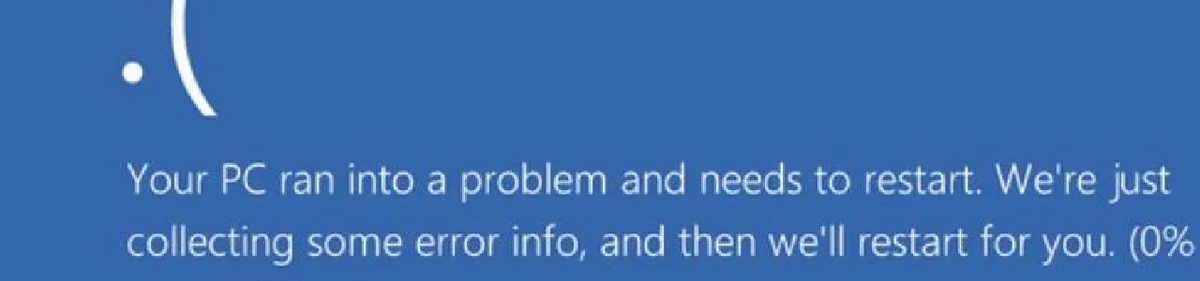
A remote engineer complains their workstation is repeatedly crashing during video calls or while compiling code. The blue screen flashes KERNEL_SECURITY_CHECK_FAILURE. You pull the minidump file and open it in WinDbg, but the debugger is completely unhelpful. It blames ntoskrnl.exe, the core Windows kernel itself. The kernel is almost certainly not the problem. A third-party software driver is quietly corrupting memory in the background, and the kernel is just the victim tripping over the mess. We need to activate the built-in Windows Driver Verifier to stress-test the system and force the guilty driver to show its face.
Pre-Flight Check
- Permissions: Local Administrator.
- Tools: The native Windows
verifier.exeutility and Safe Mode access. - Impact: High. This tool is designed to intentionally cause a Blue Screen of Death. It will significantly degrade system performance while active.
[!WARNING] The Risk Factor: Never select "Automatically select all drivers installed on this computer." Verifying core Microsoft drivers will render the machine completely unbootable. Only target third-party drivers. You absolutely must know how to boot the machine into Safe Mode before you begin, as you will need Safe Mode to turn the verifier off.
The Solution: The Stress Test
Stop guessing which peripheral or software update caused the issue. Let Windows catch the culprit in the act.
- Activate the Utility: Press the Windows Key, type
verifier, and hit Enter to launch the Driver Verifier Manager. - Configure the Test: Select Create standard settings and click Next.
- Target the Suspects: Select Select driver names from a list and click Next. Wait a moment for the list to populate.
- Filter the List: Click the Provider column header to sort the list alphabetically.
- Select the Targets: Scroll through and check the box next to every single driver where the Provider is not Microsoft Corporation. You are looking for things like legacy VPN clients, third-party antivirus agents, and hardware drivers. Click Finish.
- Reboot and Wait: Restart the computer. The machine will feel slightly sluggish. Instruct the user to use the PC normally until it crashes again.
- The Reveal: This time, the BSOD will likely change from
KERNEL_SECURITY_CHECK_FAILUREtoDRIVER_VERIFIER_DETECTED_VIOLATION. More importantly, it will explicitly name the exact.sysfile causing the crash right on the screen or in the resulting minidump. - Kill the Verifier: Once you have the name of the rogue driver, boot the machine into Safe Mode. Open an elevated Command Prompt, type
verifier /reset, and press Enter. Reboot normally to restore standard system performance.
The "Why" (Root Cause)
Why does Windows 11 suddenly care about a VPN client that worked perfectly on Windows 10? Microsoft has severely tightened kernel security with features like Core Isolation and Hypervisor-Enforced Code Integrity (HVCI).
Many legacy software applications use incredibly invasive programming techniques. Old VPN clients, aggressive endpoint protection suites, and video game anti-cheat engines often attempt to inject code directly into restricted memory blocks. Windows 11 monitors this actively. The moment a legacy driver attempts to execute a command outside of its allocated memory space, the kernel flags a security violation and instantly halts the system to prevent a malicious payload from taking root.
Under the Hood (Technical Deep Dive)
When a driver corrupts memory during normal operation, the system usually does not crash immediately. The corruption sits silently in RAM until another process tries to read that specific block. By the time the BSOD happens, the original rogue driver is long gone, which is why WinDbg blindly blames the kernel.
Driver Verifier changes this behavior by utilizing the "Special Pool" allocation feature. When you flag a driver in the Verifier menu, Windows surrounds every single memory allocation requested by that driver with invalid "red zone" pages.
If the targeted driver tries to write even one byte past its assigned buffer, it hits the red zone. The Verifier detects the buffer overrun at the exact millisecond it happens and triggers a Bug Check 0xC4 (DRIVER_VERIFIER_DETECTED_VIOLATION). It catches the software with the smoking gun in its hand, giving you the definitive proof you need to uninstall the software or demand a patch from the vendor.
RMM & Automation Tips
- The Global Software Purge: You cannot safely automate Driver Verifier, but once you identify the guilty software (for example, an outdated SonicWall NetExtender client), you can automate the cure. Write a PowerShell script to silently uninstall that specific application GUID and push it via your RMM to every endpoint in the client's fleet before their machines start crashing.
- Failsafe Commands: If a remote machine gets stuck in a boot loop and you only have access to the WinRE recovery command prompt via your out-of-band management tool, you can disable the verifier offline. Type
verifier /bootmode resetonbootfailto force the tool to disable itself if the OS fails to load.
Troubleshooting & Edge Cases
- Edge Case 1: The Verifier Finds Nothing. If you run Driver Verifier for 48 hours, the machine crashes with
KERNEL_SECURITY_CHECK_FAILUREagain, and the new dump file still blames the kernel, you likely have a physical hardware fault. Failing RAM or a degraded CPU cache can randomly flip security bits in memory, tricking the OS into thinking a software violation occurred. Run MemTest86 to verify the silicon. - Edge Case 2: Hidden Drivers. Some extremely aggressive rootkits or low-level anti-cheat engines hide themselves from the standard Verifier list. If you suspect a specific game (like Valorant's Vanguard or a similar kernel-level anti-cheat), you might need to manually add the specific
.sysfile path to the Verifier using the command line syntax:verifier /standard /driver customdriver.sys.
If you want to see more guides, automation scripts, and technical deep dives just like this, make sure to follow us on Twitter, check out the Facebook page, and sign up for the weekly 404 & More newsletter!



