Isolating UNEXPECTED_STORE_EXCEPTION: The Tier 2 Hardware Protocol
Diagnose UNEXPECTED_STORE_EXCEPTION by bypassing software repairs. Learn how to read SMART data, reseat NVMe drives, and safely clone failing storage.
CrystalDiskInfo SMART Telemetry & Unexpected Store Exception Hard Drive Cloning Guide
5 min. read
The Ticket: The Ghost Drive
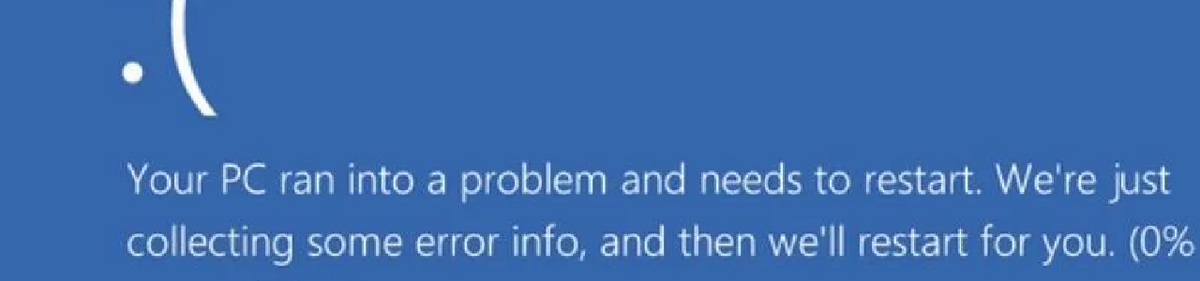
A workstation drops off the network. The user reports a sudden blue screen reading UNEXPECTED_STORE_EXCEPTION, and upon restarting, the computer boots straight into the BIOS with a "No Bootable Device" warning. After completely holding the power button down and turning it back on, Windows loads perfectly as if nothing happened. Tier 1 has already attempted running SFC scans and Windows Startup Repair, but the crashes continue. We need to stop trusting software diagnostics. This error code is a massive red flag that the physical storage drive is actively failing or dropping off the motherboard bus. We must triage the hardware and image the drive before it permanently bricks.
Pre-Flight Check
- Permissions: Physical access to the workstation.
- Tools: A Phillips head screwdriver, a bootable WinPE USB drive, and a portable hardware diagnostic tool like CrystalDiskInfo.
- Impact: High.
[!WARNING] The Risk Factor: The worst thing you can do to a drive throwing this error is run a deep sector scan like chkdsk /r. If the drive's read/write heads are failing or the NAND flash is exhausted, forcing the drive to perform millions of intense read operations will push it over the edge and destroy any chance of data recovery.The Solution: Physical Triage and Emergency Imaging
Do not waste time reinstalling the operating system. You must prove the hardware is stable first.
1. The Physical Reseat Thermal expansion and simple desk vibrations can loosen motherboard connections.
- Power down the PC and unplug the power supply.
- If it is a SATA drive, completely replace the SATA data cable. They degrade easily.
- If it is an M.2 NVMe drive, unscrew the retention screw, pull the drive entirely out of the slot, blow out the connector, and firmly reseat it. M.2 drives can warp slightly under extreme heat, causing microscopic pin disconnects.
2. Read the Raw SMART Data You need to pull the drive's internal telemetry. Boot the machine into Windows or use a WinPE recovery drive.
- Download and run a portable version of CrystalDiskInfo (or the manufacturer's specific dashboard tool).
- Look at the overall health status. If it says "Caution" or "Bad", the drive is dying.
- Look at the specific hex values for Reallocated Sectors Count (SATA) or Media and Data Integrity Errors (NVMe). If these raw values are anything higher than zero, the storage controller is actively quarantining dead memory cells.
3. The Emergency Clone If you see reallocated sectors, the drive is condemned.
- Do not attempt a standard drag-and-drop file backup within Windows. The OS will crash when it hits the bad blocks.
- Boot the machine using a dedicated imaging tool like Macrium Reflect Rescue Media or a Linux live USB running
ddrescue. - Perform a block-level clone to an external drive. Block-level cloning bypasses the Windows file system entirely and ignores bad sectors, allowing you to salvage the partition structure intact.
The "Why" (Root Cause)
What exactly is the "Store" in this bug check? It refers to the Memory Store component of the Windows NT Kernel.
Windows constantly moves application data back and forth between your active RAM and the paging file on the storage drive. When the kernel attempts to read a critical block of memory that was paged to the disk, but the SSD controller has suddenly crashed and stopped talking to the motherboard, the kernel cannot retrieve the data. To prevent executing corrupt instructions, Windows immediately triggers Bug Check 0x154 to halt the system.
Under the Hood (Technical Deep Dive)
Why does the drive show up as "Not Found" in the BIOS immediately after the crash, but works fine after a hard reboot?
This is the classic symptom of a storage controller lockup. The controller is the microchip on the SSD managing the raw flash memory. If the controller overheats or encounters a fatal firmware exception, it completely drops off the PCIe bus.
When Windows blue screens and restarts the software, the motherboard performs a "warm boot." The physical power to the motherboard was never cut, so the SSD controller remains locked in its crashed state. The BIOS queries the PCIe lanes, gets no response, and assumes the drive is missing. When the user holds the power button down and performs a "cold boot," the power is physically cut from the wall to the board. The SSD controller loses all voltage, clears its hung state, re-initializes from scratch, and suddenly reappears.
RMM & Automation Tips
- The Predictive Failure Alert: By the time a user sees an
UNEXPECTED_STORE_EXCEPTION, the drive is usually on its last legs. Set your RMM to proactively query the WMI namespace for hardware failures. Create a monitor that runsGet-WmiObject -namespace root\wmi -class MSStorageDriver_FailurePredictStatusand triggers a critical alert if thePredictFailurevalue ever returnsTrue.
Troubleshooting & Edge Cases
- Edge Case 1: Thermal Throttling. High-performance Gen4 NVMe drives generate massive amounts of heat. If the CrystalDiskInfo temperature reading shows the drive exceeding 75 degrees Celsius under load, the controller will shut itself off to prevent melting the silicon. If the SMART health is 100% but the drive keeps dropping, install an aftermarket M.2 aluminum heatsink.
- Edge Case 2: Outdated Motherboard BIOS. Sometimes the SSD is perfectly healthy, but the motherboard's PCIe bus management is flawed. If a client upgrades an older motherboard with a brand-new high-speed NVMe drive, the BIOS might fail to maintain the connection during deep sleep states. Flash the motherboard BIOS to the latest version before condemning the storage drive.
If you want to see more guides, automation scripts, and technical deep dives just like this, make sure to follow us on Twitter, check out the Facebook page, and sign up for the weekly 404 & More newsletter!



