Taming BAD_POOL_CALLER: Peripheral Triage and Driver Rollbacks
Resolve BAD_POOL_CALLER crashes by isolating USB peripherals and rolling back network drivers. Learn how Windows kernel memory pools function.
PowerShell PnPSignedDriver Audit & Bad Pool Caller Driver Rollback Guide
6 min. read
The Ticket: The USB Roulette Crash
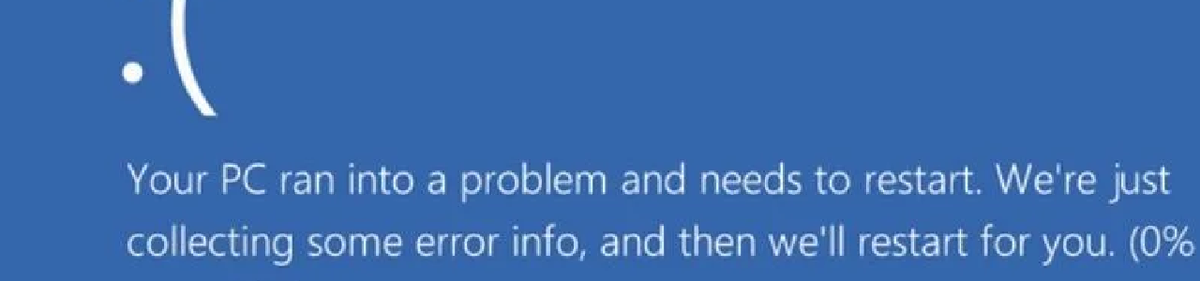
A remote worker just plugged in a new USB docking station, or perhaps Windows Update forced a new Wi-Fi driver overnight. Now, the machine randomly blue screens with BAD_POOL_CALLER right in the middle of their workflow. Standard system file checks come back completely clean, and the hardware diagnostics pass with flying colors. We need to physically isolate the external hardware and roll back the offending network or peripheral driver to stop the kernel from tripping over corrupted memory requests.
Pre-Flight Check
- Permissions: Local Administrator.
- Tools: Device Manager, physical access to the machine.
- Impact: Moderate.
[!WARNING] The Risk Factor: If you are troubleshooting this remotely, rolling back a network adapter driver will instantly drop your ScreenConnect or RMM remote session. You must coordinate a time to perform this fix while the user is physically at the keyboard to reconnect the Wi-Fi or click through the reconnect prompts.
The Solution: Physical and Software Isolation
Do not immediately start running deep offline disk repairs. This is almost always a driver or peripheral issue.
1. The Physical Isolation Test Before diving into software, you need to prove the core hardware is stable.
- Instruct the user to unplug literally everything from the PC except the power cable, monitor, keyboard, and mouse. This includes USB-C docks, external hard drives, webcams, and printers.
- Have them use the PC normally.
- If the system stabilizes and stops crashing, the issue is a specific peripheral. Have them plug devices back in one by one, waiting an hour or two between each, until the BSOD returns. You have now found the guilty hardware.
2. The Network Driver Rollback If the physical triage does not stop the crashes, the culprit is usually a newly updated network adapter or Wi-Fi card.
- Open Device Manager.
- Expand the Network adapters section.
- Right-click the primary Wi-Fi or Ethernet adapter and select Properties.
- Navigate to the Driver tab.
- Click Roll Back Driver.
- Select "Previous version of the driver performed better" and confirm. Windows will restore the previous known-good binary. Reboot the PC.
The "Why" (Root Cause)
What exactly is a "Pool" in Windows? The Windows operating system sets aside specific blocks of RAM for device drivers to use, known as the memory pool.
When you plug in a USB device or a network card processes data, the hardware's driver asks the Windows kernel to allocate a chunk of this pool. The BAD_POOL_CALLER error happens when a poorly coded driver messes up this request. It might ask for memory that does not exist, attempt to access a chunk of memory it already told Windows to free, or try to free the exact same block of memory twice. The kernel detects this illegal operation and instantly halts the system to prevent the bad driver from overwriting critical data belonging to other applications.
Under the Hood (Technical Deep Dive)
To get incredibly specific, there are two main pools in the Windows architecture: the Paged Pool and the Non-Paged Pool.
The Non-Paged pool is reserved for data that must stay in physical RAM at all times because the kernel might need it at an Interrupt Request Level (IRQL) that is too high to wait for the hard drive to spin up. Network adapters rely heavily on the Non-Paged pool to process fast incoming packet streams.
Bug Check 0xC2 (BAD_POOL_CALLER) triggers when a driver violates the strict rules of this pool. If you were to open the minidump file in WinDbg, the first parameter of the bug check code literally translates to the specific violation type. For example, a parameter of 0x07 means the driver attempted to free a pool allocation that was already freed. The driver rollback fixes this because it replaces the sloppy, bug-filled code with the older, stable version that respects the memory management rules.
RMM & Automation Tips
- The Recent Driver Audit: You can use your RMM to execute a PowerShell command that hunts down exactly which drivers were updated right before the crashing started. Run this command to list all third-party drivers sorted by installation date:
Get-WmiObject Win32_PnPSignedDriver | Where-Object {$_.DeviceName -ne $null} | Select-Object DeviceName, Manufacturer, DriverVersion, InstallDate | Sort-Object InstallDate -Descending | Select-Object -First 15 - Driver Update Blacklisting: Once you identify a specific Intel or Realtek network driver version causing the BSOD fleet-wide, use your RMM or Intune policy to explicitly block that driver's hardware ID from updating via Windows Update until the manufacturer releases a patched version.
Troubleshooting & Edge Cases
- Edge Case 1: The VPN Virtual Adapter. If you roll back the physical Wi-Fi card and the crash persists, check for virtual network adapters. Outdated VPN clients (like old versions of Cisco AnyConnect or FortiClient) create virtual miniport adapters that interact with the memory pool. An outdated VPN client running on a brand-new Windows 11 build will trigger this BSOD instantly. Uninstall the VPN client completely and reinstall the latest version from the vendor's website.
- Edge Case 2: Ghost Devices. Sometimes a faulty USB device was unplugged weeks ago, but its corrupted driver is still loaded in the background as a "hidden" device. Open Device Manager, click View, and select Show hidden devices. Expand the Universal Serial Bus controllers tree and delete any grayed-out devices that have a warning icon next to them.
If you want to see more guides, automation scripts, and technical deep dives just like this, make sure to follow us on Twitter, check out the Facebook page, and sign up for the weekly 404 & More newsletter!



