Conquering SYSTEM_THREAD_EXCEPTION_NOT_HANDLED: The Deep Driver Scrub
Fix the SYSTEM_THREAD_EXCEPTION_NOT_HANDLED blue screen. Learn how to identify rogue .sys files and use DDU in Safe Mode for a clean driver wipe.
Display Driver Uninstaller (DDU) Safe Mode Purge & Kernel Boot Loop Fix Guide
5 min. read
The Ticket: The Pre-Desktop Panic
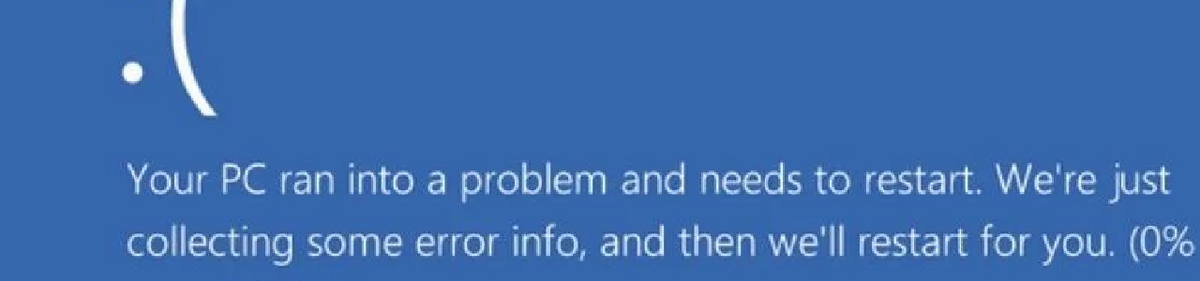
A client's workstation is trapped in a vicious cycle. The moment the Windows logo disappears and the login screen is supposed to load, the machine crashes. The blue screen flashes SYSTEM_THREAD_EXCEPTION_NOT_HANDLED before violently restarting. Sometimes this happens randomly while the user is actively rendering a video or running CAD software. A standard reboot does nothing, and clicking "Update Driver" in Device Manager only tells you the best driver is already installed. We need to break the boot loop, identify the exact rogue file causing the kernel panic, and use Display Driver Uninstaller (DDU) to rip the corrupted software out by the roots.
Pre-Flight Check
- Permissions: Local Administrator.
- Tools: Safe Mode access, WinDbg (or a dump viewer), and the Display Driver Uninstaller (DDU) utility.
- Impact: High. Stripping display drivers will force the machine to drop back to the Microsoft Basic Display Adapter temporarily. The screen resolution will be heavily degraded until the fix is fully completed.
[!WARNING] The Risk Factor: You must run DDU from within Safe Mode. Running a deep registry scrubber in normal Windows while the OS is actively using the graphics driver can permanently corrupt the active registry tree, forcing a complete OS reinstall. Furthermore, you must disconnect the machine from the internet before starting. If you do not, Windows Update will silently download and install a generic, outdated driver the exact second DDU finishes, ruining the clean slate.
The Solution: The DDU Scrub
Do not rely on the standard Windows "Add or Remove Programs" menu. It leaves behind hundreds of registry keys and cached files.
1. Prepare the Ammo While the machine is stable (or using a different PC to transfer via USB), download the latest official driver from Nvidia, AMD, or Intel. Download DDU and extract it to the desktop. Finally, physically unplug the Ethernet cable or turn off the Wi-Fi router.
2. Identify the Target Boot the PC into Safe Mode. Navigate to C:\Windows\Minidump and open the latest dump file to read the bug check. You are looking for the specific module name triggering the fault.
- If it points to
nvlddmkm.sys, the Nvidia driver is corrupted. - If it points to
amdkmdag.sysoratikmdag.sys, the AMD driver is at fault. - If it points to
igdkmd64.sys, it is Intel graphics.
3. The Deep Clean Launch DDU as an Administrator.
- In the options menu, double check that "Prevent downloads of drivers from Windows Update" is ticked.
- On the main screen, select your device type (GPU) and the specific manufacturer.
- Click the Clean and restart button.
- DDU will aggressively purge the Windows Driver Store, delete OEM registry hooks, strip out leftover audio controllers bundled with the graphics package, and automatically reboot the PC back into normal Windows.
4. Reinstall and Reconnect Log back into normal Windows. The resolution will look massive. Run the official GPU driver installer you downloaded in step 1. Once the installation finishes, plug the Ethernet cable back in.
The "Why" (Root Cause)
Why does a standard driver update trigger a fatal crash? When a user clicks "Express Update" in a tool like GeForce Experience, the installer attempts to overwrite the existing driver binaries while they are still loaded in memory. Sometimes, Windows Update tries to push a WHQL certified driver at the exact same moment in the background. The registry gets tangled, leaving behind orphaned keys that point to missing or mixed version files. When the system boots, it tries to load these conflicting instructions, panics, and throws the BSOD.
Under the Hood (Technical Deep Dive)
Let us dissect the error code itself. A "System Thread" is a background process running entirely in kernel mode (Ring 0). These threads have unrestricted, absolute access to the physical hardware.
When a driver like nvlddmkm.sys executes a bad instruction, like attempting to access a block of memory that has already been freed or trying to execute a command at the wrong Interrupt Request Level (IRQL), it generates an "Exception". Because it is operating at the absolute lowest kernel level, there is no higher-level error handler available to catch the mistake. The kernel cannot recover gracefully. To prevent the rogue thread from writing garbage data directly to the hard drive, the OS halts the entire system immediately.
RMM & Automation Tips
- Minidump Fetching: Create an RMM script that automatically zips the latest files in
C:\Windows\Minidumpand attaches them to the service ticket whenever an endpoint reports a BugCheck event. This allows Tier 2 engineers to confirm it is a graphics driver issue before ever picking up the phone. - Pause Updates: Use your RMM command line to temporarily halt the Windows Update service (
Stop-Service wuauserv) on the endpoint before executing a remote DDU scrub. This ensures Microsoft does not inject a generic driver mid-repair if you are unable to physically disconnect the network.
Troubleshooting & Edge Cases
- Edge Case 1: Antivirus Clashes. If the minidump points to a file related to your EDR or antivirus software, the graphics driver is fine. An aggressive security update just quarantined a critical Windows system thread. You will need to boot into Safe Mode and use the security vendor's specialized removal tool to strip the agent completely.
- Edge Case 2: Hardware Degradation. If you perform a flawless DDU wipe, install fresh OEM drivers, and the exact same
SYSTEM_THREAD_EXCEPTION_NOT_HANDLEDblue screen returns the moment the GPU goes under a heavy rendering load, the silicon is likely failing. The graphics card needs to be RMA'd or replaced.
If you want to see more guides, automation scripts, and technical deep dives just like this, make sure to follow us on Twitter, check out the Facebook page, and sign up for the weekly 404 & More newsletter!